Table of Contents
Packet Tracer MLPPP Configuration Example
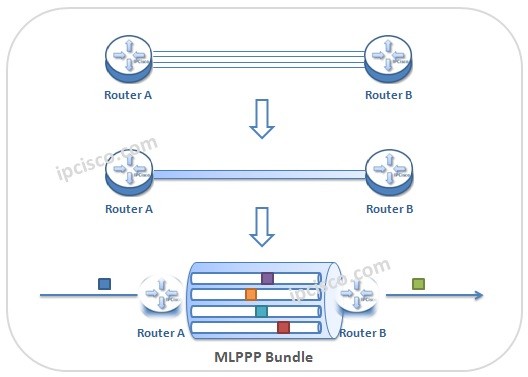
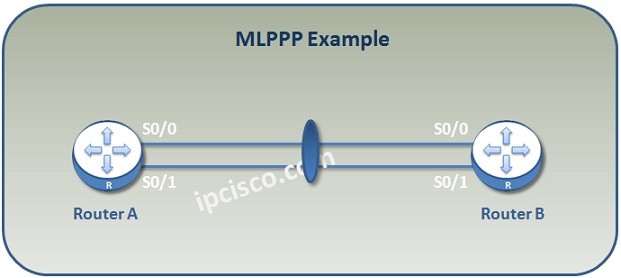
In whe previous lesson, we have learned what is MLPPP. Here, we will focus on how to configure MLPPP. In this MLPPP Configuration example, we will use the below simple topology. We will configure MLPPP on both of the routers step by step.
You can also DOWNLOAD all the Packet Tracer examples with .pkt format in Packet Tracer Labs section.
In Multilink PPP Configuration example, we will do the below configurations:
- Firstly we will create MLPPP Bundle Interface and assign IP Address to this interface.
- Then, we will assign the physical interfaces under MLPPP bundle.
- Lastly, we will verify our MLPPP configuration.
Now, let’s start our configuration.
Creating MLPPP Bundle
Firstly, we will create MLPPP Bundle, Logical Interface. We will set the encapsulation as PPP and we will assign an IP address to the logical interface.
Router1(config)# interface multilink 1
Router1(config-if)# encapsulation ppp
Router1(config-if)# ip addres 10.0.0.1 255.255.255.0
Router1(config-if)# exit
Router2(config)# interface multilink 1
Router2(config-if)# encapsulation ppp
Router2(config-if)# ip addres 10.0.0.2 255.255.255.0
Router2(config-if)# exit
Configuring MLPPP Bundle Members
We will assign each physical serial interface under the MLPPP bundle. To do this, firstly we will remove the interface ip address with “no ip address” command and then we will determine the encapsulation type as PPP. After that, we will enable MLPPP with “ppp multilink” commands and then we will assign the physical interfaces to the bundle with “ppp multilink group” command.
Router1(config)# interface serial 0/0
Router1(config-if)# no ip address
Router1(config-if)# encapsulation ppp
Router1(config-if)# ppp multilink
Router1(config-if)# ppp multilink group 1
Router1(config-if)# no shutdown
Router1(config-if)# exit
You can also DOWNLOAD all the Packet Tracer examples with .pkt format in Packet Tracer Labs section.
We will configure the second interface as the first interface.
Router1(config)# interface serial 0/1
Router1(config-if)# no ip address
Router1(config-if)# encapsulation ppp
Router1(config-if)# ppp multilink
Router1(config-if)# ppp multilink group 1
Router1(config-if)# no shutdown
Router1(config-if)# exit
And for the second router, the similar configurations will be done like below.
Router2(config)# interface serial 0/0
Router2(config-if)# no ip address
Router2(config-if)# encapsulation ppp
Router2(config-if)# ppp multilink
Router2(config-if)# ppp multilink group 1
Router2(config-if)# no shutdown
Router2(config-if)# exit
Router2(config)# interface serial 0/1
Router2(config-if)# no ip address
Router2(config-if)# encapsulation ppp
Router2(config-if)# ppp multilink
Router2(config-if)# ppp multilink group 1
Router2(config-if)# no shutdown
Router2(config-if)# exit
MPPP Verification
To verify our MLPPP configuration, we will use various show commands. The show commands for MLPP verification is given below:
Router1# show interface multilink 1
Router1# show ppp multilink active
Router1# show ppp multilink